Saturday, December 17, 2022

AWS ECS Task Definition

 Now that I have an ECR Image (built locally and pushed up from Docker Desktop) and an ECS Cluster Created, next step is to create a Task Definition.


I provided the Container Port of 8080 (same as the one I exposed in the Dockerfile of the Image). 


Here, we are going absolute minimum on CPU and Memory since it is a test app.
Note: In order to actually create Task Def and Containers, I had to go back as the Root User and create Inline Policy that contained the following IAM Actions:
{
    "Version": "2012-10-17",
    "Statement": [
        {
            "Sid": "VisualEditor0",
            "Effect": "Allow",
            "Action": [
                "iam:CreateRole",
                "iam:AttachRolePolicy"
            ],
            "Resource": "*"
        }
    ]
}
Otherwise you will see error messages like this, since AWS is trying to create a Role for running your task.

AWS ECS Cluster Creation

I created a cluster using AWS "New ECS Experience" today.  Here is the entry point:


It looks great.  I found it to be much easier and less confusing to navigate than the previous ECS interface.  

On the networking section, they had 6 subnets initially selected, and they recommend at least 3 for production.

Since this is my weekend cloud study/learning project, I don't need to distribute across multiple availability zones for high availability, so I just chose 1 subnet.


One of the big changes is that they are more explicit about letting you know that selecting EC2 instances is in addition to Fargate, not in-lieu of Fargate, as seen by the fact that AWS Fargate is checked and disabled (cannot be unselected). 

Sunday, December 11, 2022

AWS Pushing Docker Image to Elastic Container Registry (ECR)

I tried to create my first Repository using the IAM user I created, java-demo. 


However, I ended up getting an error:


I fixed this by updating the ECR-PushImages Policy to include an additional action: ecr:CreateRepository.
{
    "Version": "2012-10-17",
    "Statement": [
        {
            "Effect": "Allow",
            "Action": [
                "ecr:CreateRepository",
                "ecr:CompleteLayerUpload",
                "ecr:GetAuthorizationToken",
                "ecr:UploadLayerPart",
                "ecr:InitiateLayerUpload",
                "ecr:BatchCheckLayerAvailability",
                "ecr:PutImage"
            ],
            "Resource": "*"
        }
    ]
}
Note: one thing I found to be super-confusing was the Version block. I looked at it, saw a date from 2012, and figured "hmm, I should update this to the current date in 2022." 

However, that causes errors.

The Version is actually the Version of Policy language, and there are only 2 valid values:

<version_block> = "Version" : ("2008-10-17" | "2012-10-17")

Source: https://docs.aws.amazon.com/IAM/latest/UserGuide/reference_policies_grammar.html

That allowed me to create the ECR Repository.  However, after logging back on as my IAM user, I still couldn't list the newly-created Repository. :-/  

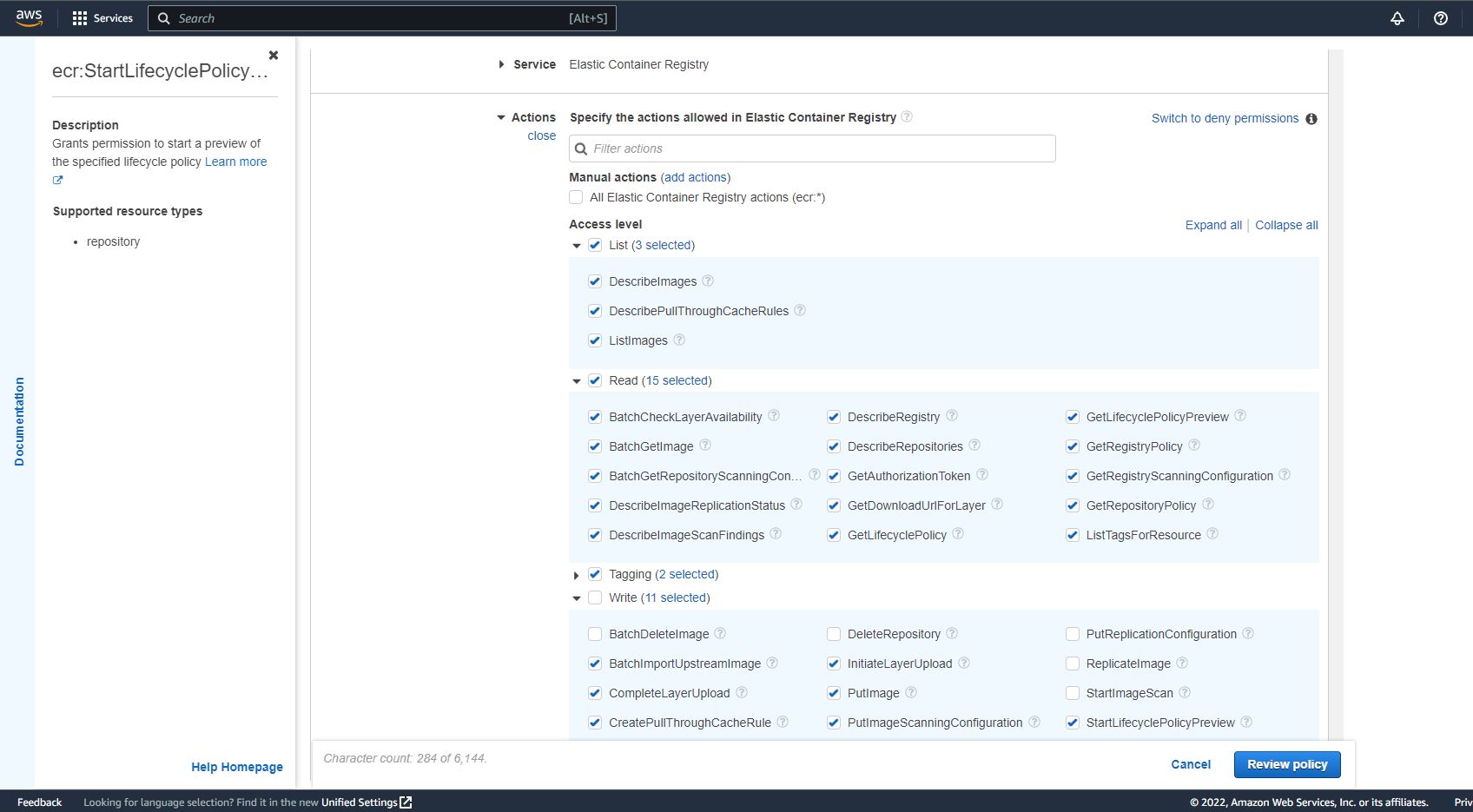
Rather than fumble through and one-by-one try and figure out what was needed, I ended up logging back in as Root User, using the Visual Editor, looking up Service: Elastic Container Registry and manually giving the IAM user actions by Access Level ...


Once completing setting up the available ecr:actions with the Policy, I was able to tag and push my Docker Image to ECR. 


C:\>aws ecr get-login-password --region us-east-1 | docker login --username AWS --password-stdin ************.dkr.ecr.us-east-1.amazonaws.com
Login Succeeded

C:\>docker tag f94c25ad91cd1dabbb0dae012a0da3f50c23e050fdd1916d7bd81d5c9dbec2b9 ************.dkr.ecr.us-east-1.amazonaws.com/java-spring-cloud-demo:v0.0.1

C:\>docker push ************.dkr.ecr.us-east-1.amazonaws.com/java-spring-cloud-demo:v0.0.1
The push refers to repository [************.dkr.ecr.us-east-1.amazonaws.com/java-spring-cloud-demo]
e971bfdd6e68: Pushed
cb90fdeb280a: Pushed
15b10c92f3b2: Pushed
e5e13b0c77cb: Pushed
v0.0.1: digest: sha256:6bee10abc02d77bced7593744f31b4d373069042cb45ae4cf4a2648992b5265a size: 1161

AWS IAM User/Group/Policies

Next step in my weekend AWS / Container / Spring Boot experimentation is to try and actually get my Docker Image pushed up to ECR.  

It runs fine in my local Docker Desktop, but I want to get it running as a service in AWS ECS.  

In following AWS best practices:

"We strongly recommend that you do not use the root user for your everyday tasks, even the administrative ones. Instead, adhere to the best practice of using the root user only to create your first IAM user. Then securely lock away the root user credentials and use them to perform only a few account and service management tasks. To view the tasks that require you to sign in as the root user, see AWS Tasks That Require Root User."

Source: https://docs.aws.amazon.com/IAM/latest/UserGuide/id.html?icmpid=docs_iam_console

I created a new IAM user called java-demo and Policy called ECR-PushImages that should allow this IAM user to push to any ECR Repository.  

If I were working in an enterprise environment, I would restrict resources, but since this is home studies, I'm leaving it open.


I'm also creating a Group called java-group, adding the IAM java-demo to this Group, and assigned ECR-PushImages (and some other out-of-box AWS IAM Policies) to this Group.

Next, I installed the AWS CLI v2 (latest) and configured it using aws configure

It asked me for 4 items:

  • AWS Access Key ID: <access key for java-demo IAM user>
  • AWS Secret Access Key: <secret access key for java-demo IAM user>
  • Default region name: us-east-1
  • Default output format: json
Once this was done, I confirmed that I could connect via CLI to ECR:
 
C:\>aws ecr get-login-password --region us-east-1 | docker login --username AWS --password-stdin **********.dkr.ecr.us-east-1.amazonaws.com
Login Succeeded

Saturday, December 10, 2022

Dockerfile and Amazon Corretto

Managed to crawl out of bed this weekend to play with Dockerfiles and Amazon Corretto (didn't feel well today).

I went to Docker Hub site for Amazon Corretto and was surprised to see Java 19 and thought about using this as my base Docker Image.  

However, went out and checked, and Java 19 is not a LTS version, so I decided to stick with Java 17. 

My Dockerfile:
FROM amazoncorretto:17.0.5-alpine3.16
RUN addgroup -S spring && adduser -S java -G spring
USER java:spring
ARG JAR_FILE=target/*.jar
COPY ${JAR_FILE} app.jar
EXPOSE 8080
ENTRYPOINT ["java","-jar","/app.jar"]
Then I ran the following command: 

docker build -t philiptenn/demo-app .

to create a Docker Image in my local Docker Desktop, and ran it with

docker run -p 8080:8080 philiptenn/demo-app

to create a running container.  

Saturday, November 5, 2022

Jib Maven Plugin, Docker Desktop, Containers

In order to try and get my Spring Boot App running in a container, next step was installing Docker Desktop and looking at Jib Maven Plugin, which was created by Google.

It seems have been created to support pushing Containers to Google Container Registry (GCR), but also has first class support for:

  •  Amazon Elastic Container Registry (ECR)
  • Azure Container Registry (ACR) 
  • JFrog Artifactory
  • Docker Hub

As of today (2022-11-05), the latest version is 3.3.1.  

I went to the GitHub Readme Page for Jib Maven Plugin documentation: https://github.com/GoogleContainerTools/jib/tree/master/jib-maven-plugin and tried running the command-line quickstart to build to my Docker Daemon running on my dev machine:

./mvnw compile com.google.cloud.tools:jib-maven-plugin:3.3.1:dockerBuild -Dimage=demo-test-app

running the command-line quickstart to build to my Docker Daemon running on my dev machine.

I did this and verified that I could see the Docker Image in Docker Desktop (a bit confused on the "Created" date being 53 years ago lol, but that's a different mystery to solve later).


Git Commit ID Maven Plugin

I found this plugin recently and absolutely love it: git-commit-id-maven-plugin

It generates a properties file (can select format, I use properties instead of json) under target/classes directory. 

Here is the setup I am using on my home demo project:


                pl.project13.maven
                git-commit-id-plugin
                4.9.10
                
                    
                        initialize
                        get-the-git-infos
                        
                            revision


                    ${project.basedir}/.git
                    git
                    false
                    true
                    ${project.build.outputDirectory}/git.properties
                    
                        ^git.build.(time|version)$
                        ^git.build.user.name$
                        ^git.commit.id$
                        ^git.commit.id.abbrev$
                    
                    properties
                    
                        false
                        false
                        -dirty


The best way to make use of this plugin is to run it without the includeOnlyProperties section and see all the git information it generates.

From there, figure out which properties you actually want, and add the includeOnlyProperties section and specify just those properties.